ToolCustodyby SmartFACT

TOOLCUSTODY · FREE TIER

How does a tool check-in and check-out system work?

Updated

A tool check-in and check-out system records who has each shared tool: it is scanned out to a person and a job, and scanned back in when it returns. In ToolCustody, the tool, the borrower and the task are checked before anything changes hands, and a tool that comes back damaged stays on hold.

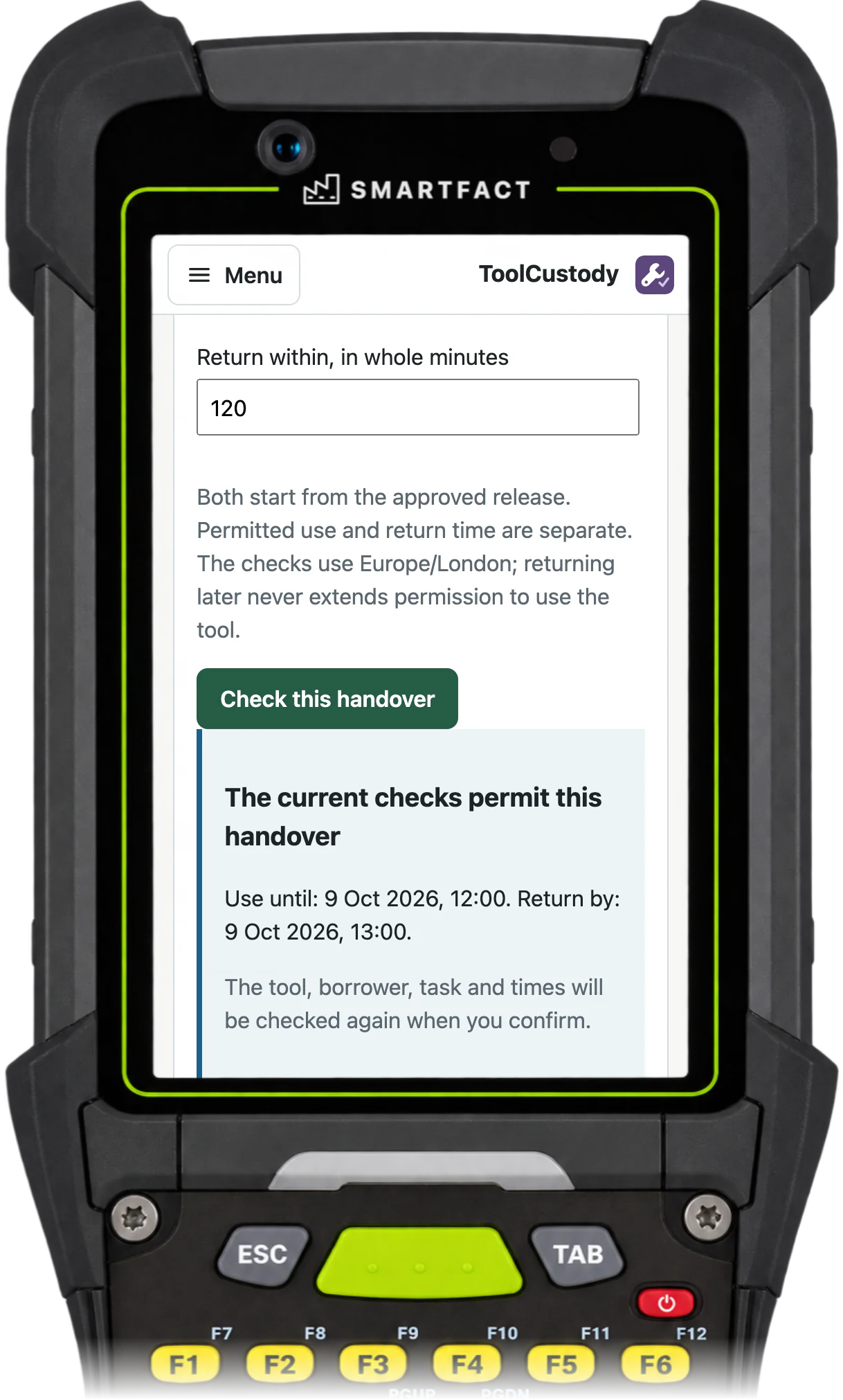
ToolCustody station showing that the current checks permit the handover, with its use-until and return-by times and a note that the tool, borrower, task and times are checked again when the operator confirms
The checks pass, and the handover still waits for the operator to confirm it, on a handheld or scan station.
Tool check-in and check-out system · 2:14 · Watch on YouTube

How is a tool checked out?

At the crib station, the operator scans the tool's barcode, or an approved tag already on it, to open that exact tool's record. Similar descriptions and manufacturer serials never merge two physical tools.

The operator then chooses who is taking it, from the list or by scanning their badge, and the approved task it is for, and sets how long it is needed and when it is due back. Both start from the durations in your approved release, and a later due-back time does not let anyone use the tool for longer, because its checks must cover the whole planned use.

A scan only selects a record. Custody changes when the operator confirms the physical handover and records it once, and the loan then names the tool, the borrower, the task and the due-back time.
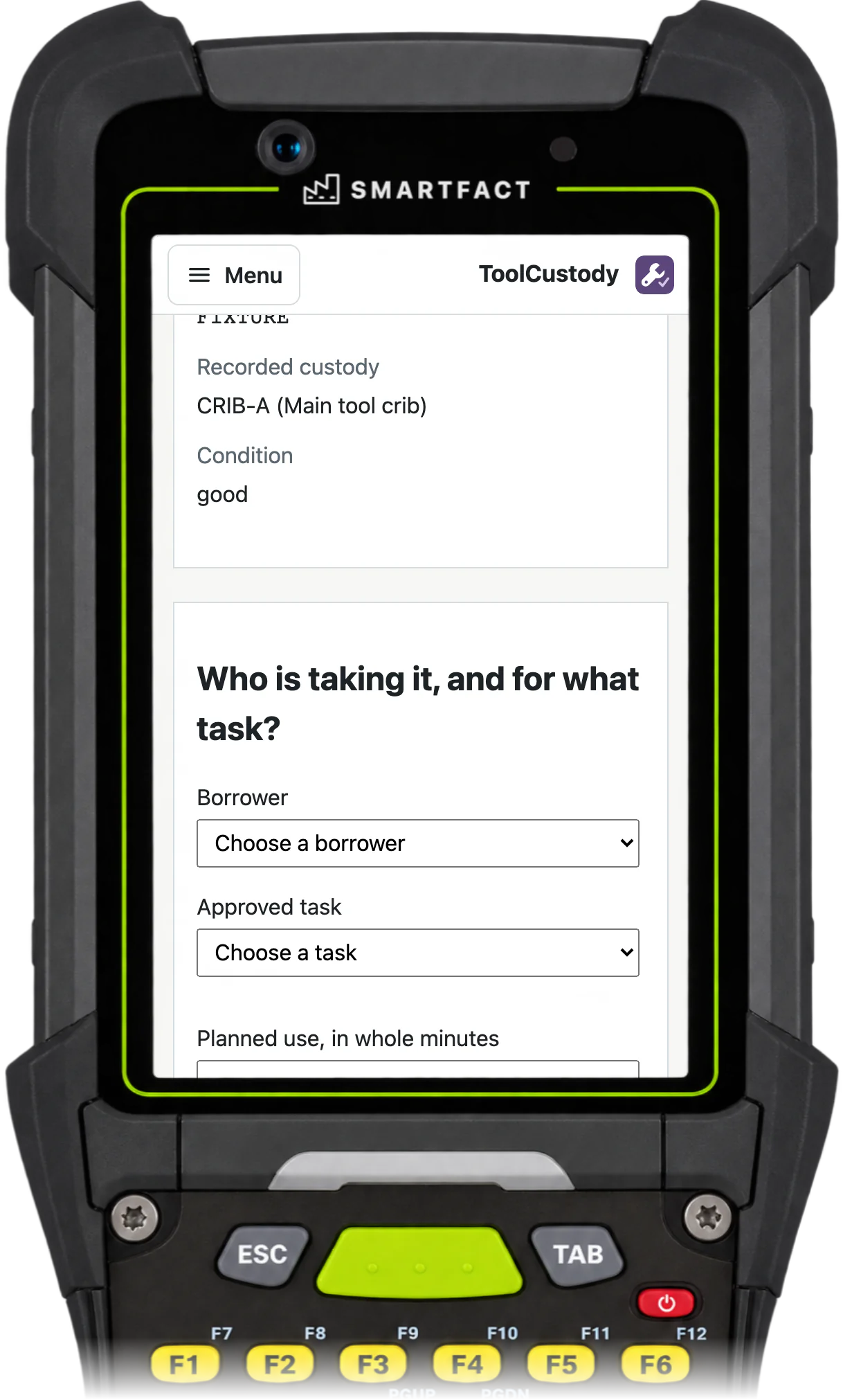
ToolCustody station after a tool scan, showing its recorded custody and condition and asking who is taking it and for what task
After the scan, the operator chooses the borrower, the approved task and the planned use, on a handheld or scan station.

What is checked before it changes hands?

Check this handover runs your approved checks against the current records before anything moves:

  • The tool is active, confirmed in its crib and not already on loan.
  • Its recorded condition is good, and it has no hold.
  • The borrower's record is active.
  • The tool's family is approved for the task, or the tool is an explicitly permitted alternative, and it has every capability the task requires.
  • Any calibration the task requires has been accepted by an authorised reviewer and stays valid for the whole planned use.
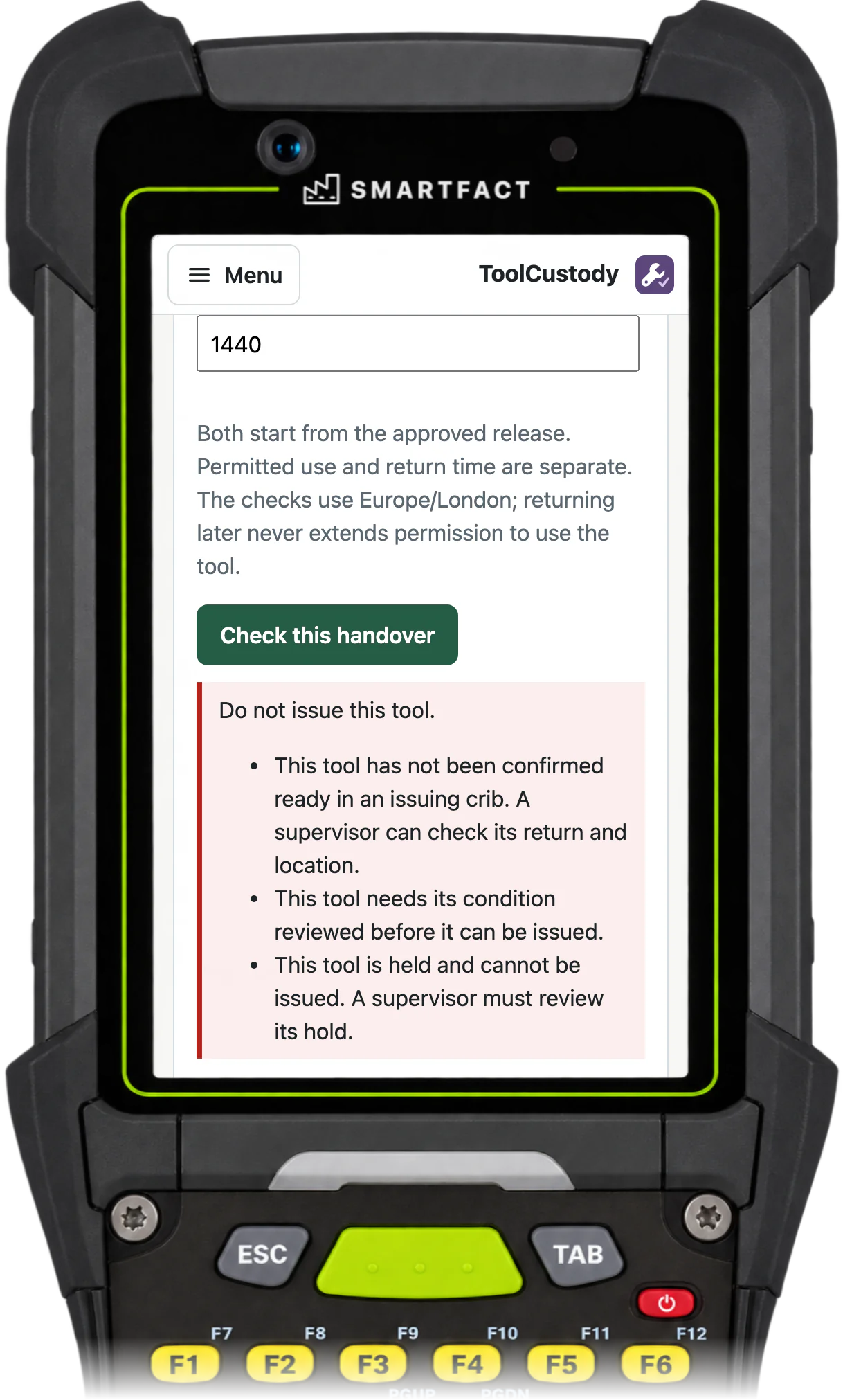
ToolCustody station refusing to issue a held, damaged fixture and saying that a supervisor must review its hold
A held tool is refused with its reasons, on a handheld or scan station.

How is it checked back in?

When the tool comes back, the operator chooses Return, records where it has actually been received, its observed condition and who brought it back, and confirms physical receipt. The return is recorded once, as it happened.

Recording a return does not make the tool ready by itself. Good condition does not clear a hold or a service requirement, and review and restow are separate steps, so a tool waiting in a review area is not offered as one ready in its crib.
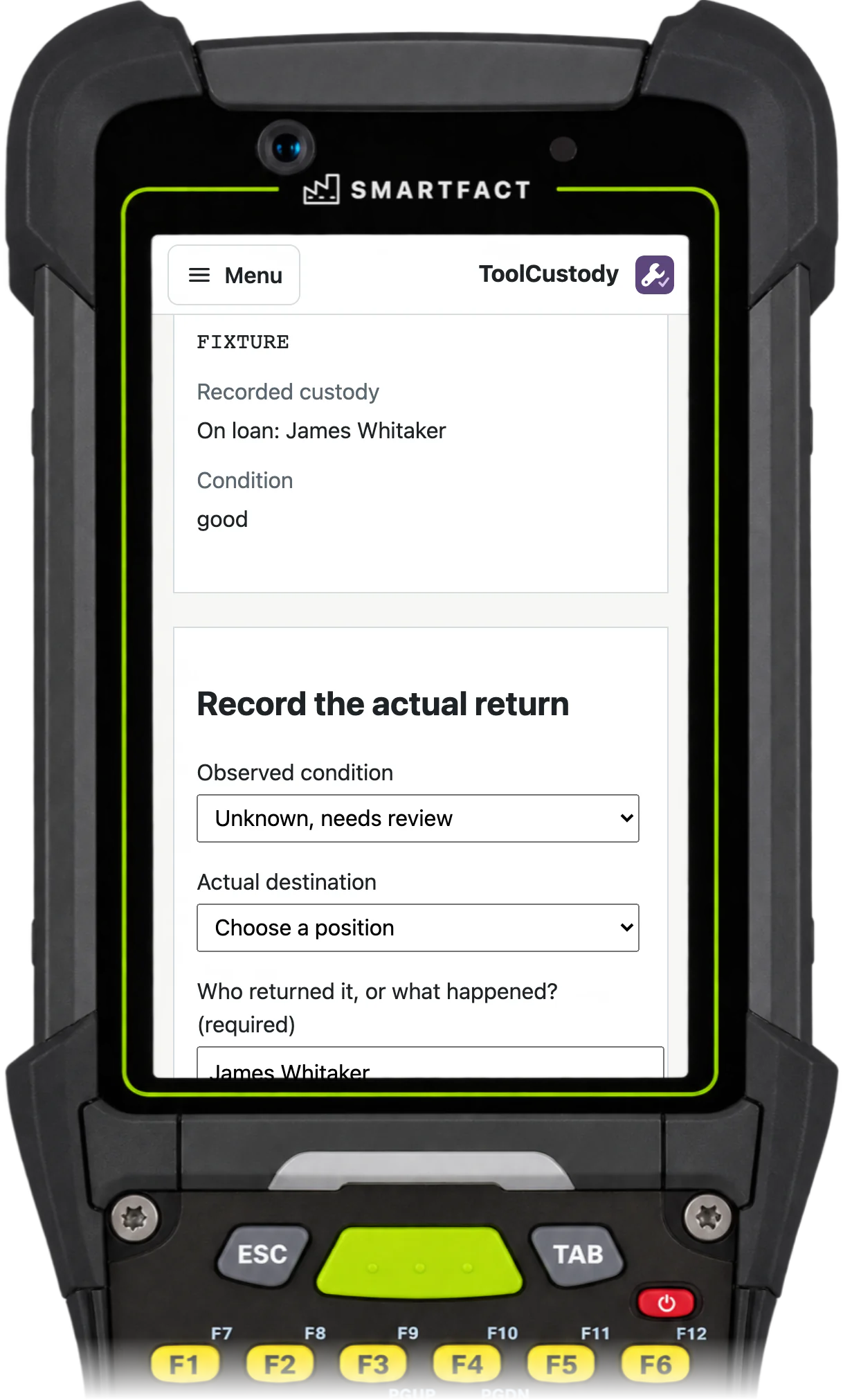
ToolCustody station recording the actual return of a tool on loan, with fields for its observed condition, actual destination and who returned it
The return records the tool's condition, where it arrived and who brought it back, on a handheld or scan station.

What happens to a damaged return?

If damage is seen, the operator records the return as Damaged. The return still counts, so the record shows the tool is back, and the tool goes on hold.

The next attempt to issue it is refused with the reason until a supervisor reviews it and clears the hold. Putting it back on a rack or uploading a service document does not clear the hold.
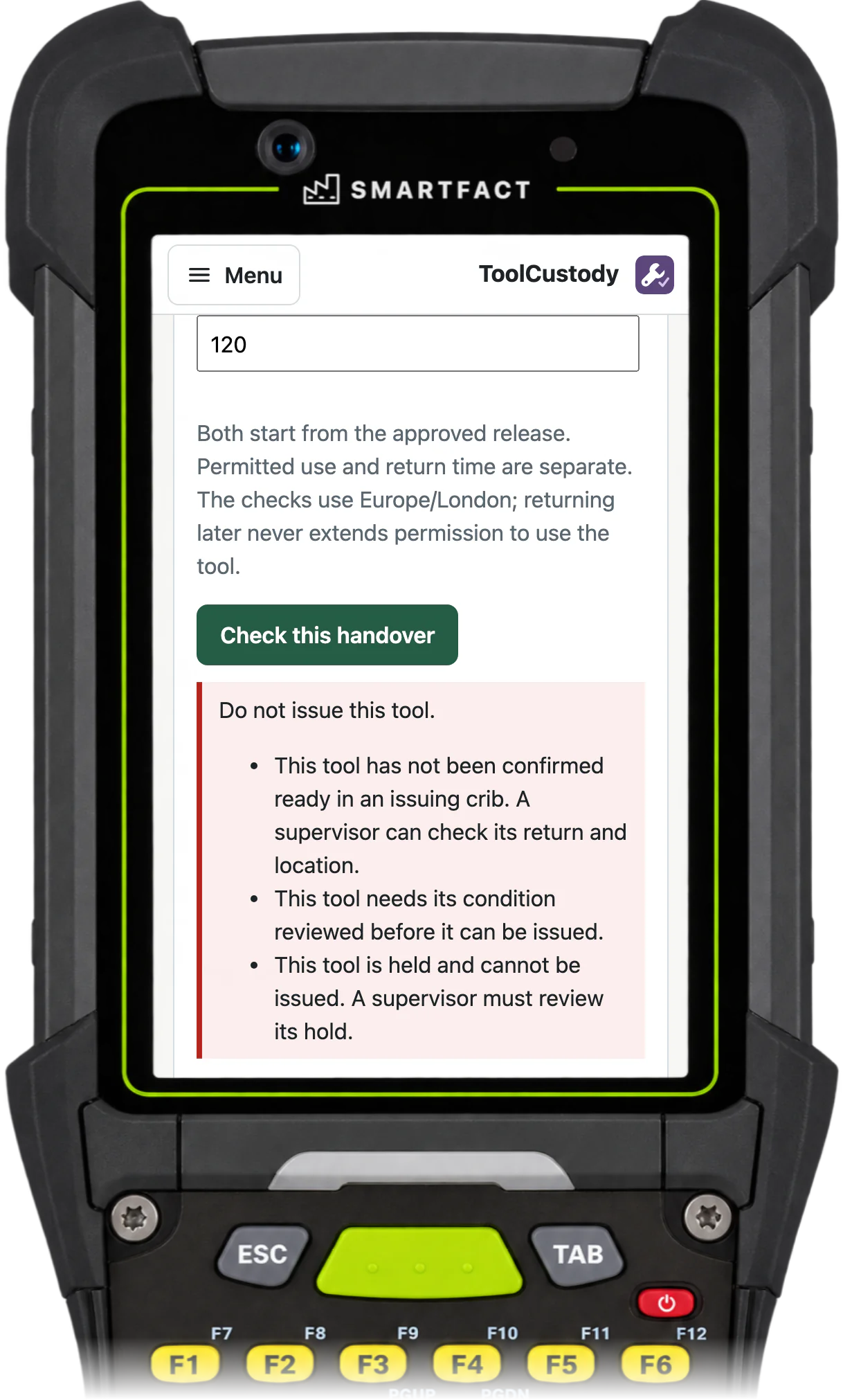
ToolCustody station refusing to issue a fixture returned damaged until its condition is reviewed and its hold cleared
The damaged return is recorded, and the next issue is refused, on a handheld or scan station.

Who had what, and when?

Every handover and return is recorded with its time, the tool and the signed-in person who recorded it. The Records view lists these events and can be narrowed to one tool, and the loans and holds view lists each open loan with its borrower and when the tool is due back.

The record shows what people recorded at the station. It is not live location tracking, and it cannot know about a handover nobody records.

Does every borrower need a login?

No. A borrower is the person recorded as receiving a tool, and a borrower record grants no access to ToolCustody. A supervisor keeps the list of borrowers, each with an optional badge code, and scanning the badge at the station selects that borrower without signing them in.

Anyone operating ToolCustody signs in with their own SmartFACT account and needs the appropriate product role.
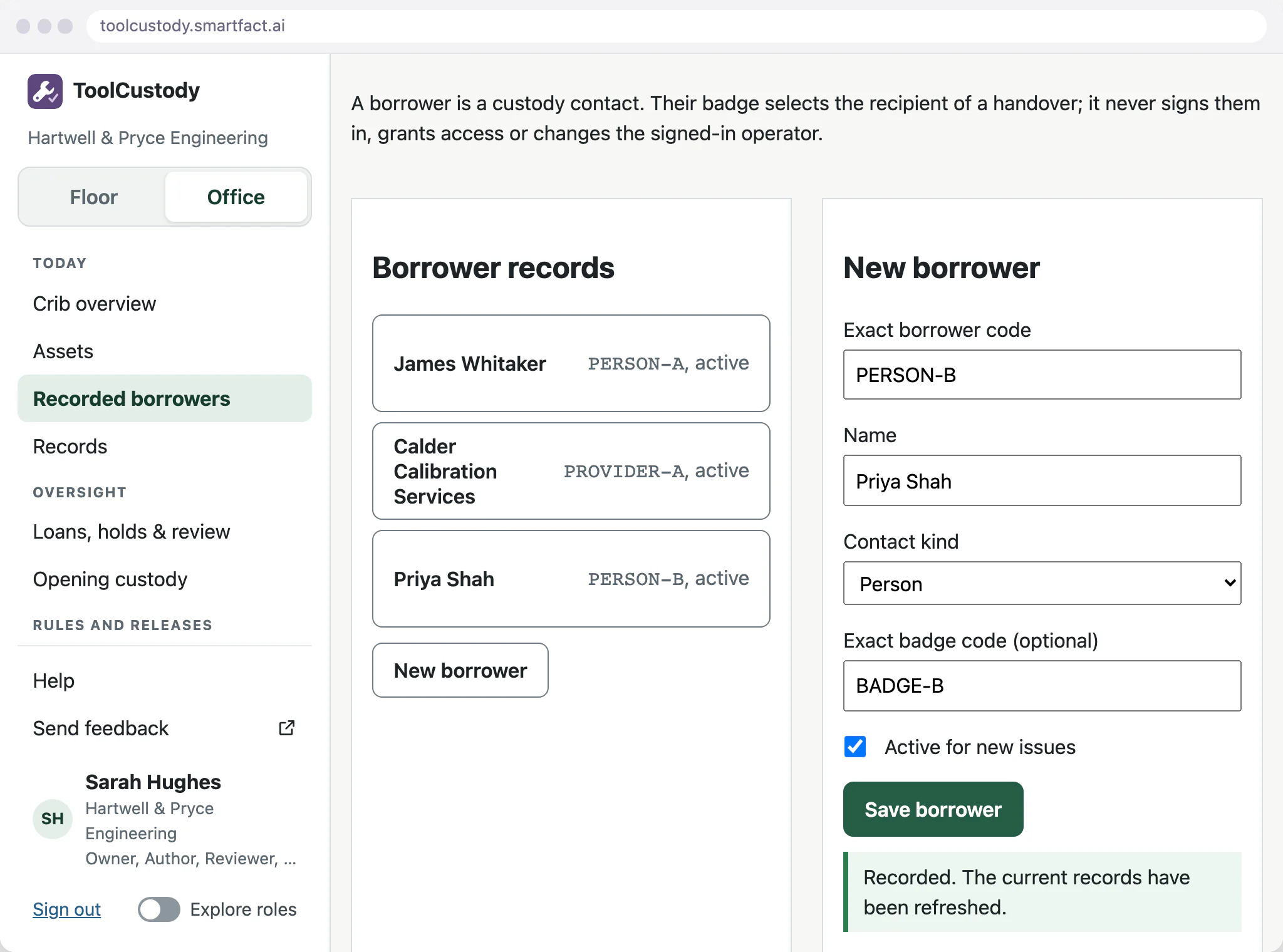
ToolCustody recorded borrowers page, with a new borrower's exact code, name, contact kind and badge code entered
Borrowers are custody contacts kept in the office: a badge selects the borrower for a handover and never signs anyone in.

What ToolCustody does not do

  • RFID or GPS tracking. The record shows the handovers and returns people record, not a tool's live location.
  • Self-service kiosks or badge sign-in. A signed-in operator records each handover, and a borrower's badge only selects the borrower.
  • Consumables or stock quantities. Each record is one individual tool, fixture or gauge.
  • Maintenance scheduling or calibration. ToolCustody checks accepted calibration records before issue; it does not plan maintenance, calibrate tools or certify them.

Common questions

Can we use a handheld or scan station?

Yes. The station runs in a browser with a barcode scanner that types like a keyboard, on a handheld or scan station at the crib. On a phone or tablet, the camera button on the scan field reads labels too. Test your scanner at the crib station before live use.

Can we start from a sign-out book or spreadsheet?

Bring a small, reviewed list of tools, their tags, approved tasks and current whereabouts to onboarding, and confirm who physically has each tool before live custody starts. Onboarding uses guided setup; bulk migration needs separate agreement.

How do we start?

Start free with one crib. While SmartFACT is in early access, registration is closed: ask for a demonstration with fictional tools and borrowers, and if it fits we enable your named users through SmartFACT Accounts and set the crib up with you. There is no payment on this website.

We can’t prove who had the torque wrench last: does ToolCustody record it?

Yes. ToolCustody records every handover, return, review and restow with the tool, the time and the signed-in person who recorded it, and each loan keeps the borrower as recorded at handover; a return also records who brought the tool back and its condition. A tool passed from one person to another is returned and issued again, so each borrower has a loan of their own, and a supervisor can mark a tool lost or disputed, which keeps its last loan open for investigation.

Start free at one station and pay when you grow. While SmartFACT is in early access, we set your first workflow up with you.

FREE TIER

Which tools are hardest to keep track of?

Tell us what your team shares and how issue and return work today. We arrange a demonstration and set your first crib up with you, free, while SmartFACT is in early access.

Start free

Free at one station. Set up with you while SmartFACT is in early access.

THE SMARTFACT SUITE

SmartFACT services
and free tools.

Automate factory decisions with rules you describe in plain English. Explore focused SmartFACT services, plus free tools for everyday checks. The free tools need no account.

Free tool

ScannerBench

See the text and key events your keyboard scanner sends. Compare them with the value you expected.

Test a scanner
Free tool

PrintBench

Print a known PDF, measure its reference marks and compare scans from the printed codes.

Check a print
Free tool

CardBench

Create 100 × 50 mm bin and rack cards with Code 128 or QR, from one record or a CSV.

Make bin cards
Free tool

CountBench

Count stock by location with a barcode scanner, compare it with a stock file and export the results.

Start a free count
Free tool

BarcodeBench

See exactly what a scanned barcode contains, with hidden characters shown and GS1 fields, check digits and dates explained.

Inspect a barcode
Free tool

MatchBench

Scan a reference and each label, see an exact match or the first difference, and download the results.

Start a free comparison
Free tool

TagBench

Scan an item or location, note what needs attention, print a review tag and keep a review list.

Make a free tag
Free tool

FindBench

Load your own parts and locations CSV, scan a code and see every location it lists.

Start a free lookup
Free tool

ManifestBench

Check cartons, pallets or serial numbers against a list with a phone or scanner and see what is missing.

Start a free check
Free tool

FeedBench

Check CSV and JSON files exactly as written, preview a column mapping and compare two versions by key.

Check a file free
Free tool

CycleBench

Time work cycles and changeovers on a phone, record interruptions with reasons and download the results.

Start a free study
Free tool

OffcutBench

Label the offcuts on your rack, find a piece long enough before cutting new stock and record what you used.

Track offcuts free
Free tool

TraceBench

Load one or two CSV exports and follow a lot or serial forwards or backwards, with the row behind every link.

Start a free trace
Free tool

ReclaimBench

Record the parts recovered from each return, label them with a QR code, check them and record the unit each one goes into.

Track recovered parts free
Free tier

LabelRules

Describe label rules in plain English. Automatically select layouts, resolve customer codes and check each job before printing.

Explore LabelRules
Free tier

KitProof

Turn plain English component rules into automatic kit checklists, then check scans against the expected parts and quantities.

Explore KitProof
Free tier

WorkSteps

Turn plain English rules into automatic step selection for each unit, with required evidence and a record of completed work.

Explore WorkSteps
Free tier

FactorySpec

Apply approved product rules and calculations automatically to turn dimensions and options into manufacturing requirements.

Explore FactorySpec
Free tier

SmartFACT Data

Maintain reference tables with ConfigSheets or bring shop orders into SmartFACT through reviewed connectors. Check changes and deliver data to the products that use it.

Explore SmartFACT Data
Free tier

OrderRun

Turn plain English rules into automatic order checks and destination selection, with controlled production release.

Explore OrderRun
Early access

ParcelOffice

Scan the work order and the parcel choice to book the courier and print the labels. Approved plain English rules recommend or choose the parcel.

Explore ParcelOffice
Free tier

RefillFlow

Scan an empty container to send the right refill request to stores. Approved plain English rules set the stores queue, priority, ticket printer and escalation.

Explore RefillFlow
Free tier

RemnantRack

Label each offcut, find a suitable length before cutting new stock and record what you used. Approved plain English rules decide what to keep and where it goes.

Explore RemnantRack
Free tier

ToolCustody

Check a shared tool before handover, record who has it and keep damaged or overdue tools out of the next issue. Start free with one crib.

Start free
Free tier

StoresFlow

Receive, put away, reserve and issue stores material with barcode checks, keeping held, reserved and available stock apart. Start free with one stockroom.

Explore StoresFlow
Free tier

LotTrail

Follow a lot or serial number through the records your factory already keeps, with the source of each link and the gaps shown. Start free with two declared sources.

Explore LotTrail
Early access

CheckStation

Scan an identified unit to get its approved final-inspection checks, then record exact readings with their result, holds and release history.

Explore CheckStation
Free tier

ReclaimStation

Book returned units in, recover and label the usable parts, release them independently and record the unit each goes into. Start free with one product family.

Explore ReclaimStation
Free tool

GuidBench

Generate GUIDs, UUID v4 and v7, ULIDs and Nano IDs, format and download batches, or inspect a UUID in your browser.

Generate identifiers
Free tool

OctetBench

Inspect and edit text, hex, Base64 and binary bytes in your browser, reveal hidden characters and compare byte sequences.

Inspect some bytes
Free tool

PatternBench

Test JavaScript regular expressions in your browser, inspect matches and captures, preview replacements and check expected cases.

Test a pattern
Free tier

SmartFACT Purchasing

Collect purchase requests, approve supplier orders and track what is still to arrive. Start free at one site.

Explore Purchasing
Free tier

SmartFACT Automation

Describe, test, approve and audit the automation rules of every SmartFACT product in one place. Included with each product’s paid plan, or on its own.

Explore Automation
Help

SmartFACT Help

Step-by-step guides and interactive demonstrations for the SmartFACT suite. Read the instructions, watch a task or practise with real product screens and sample data.

Open SmartFACT Help